Math Assistant in Microsoft OneNote
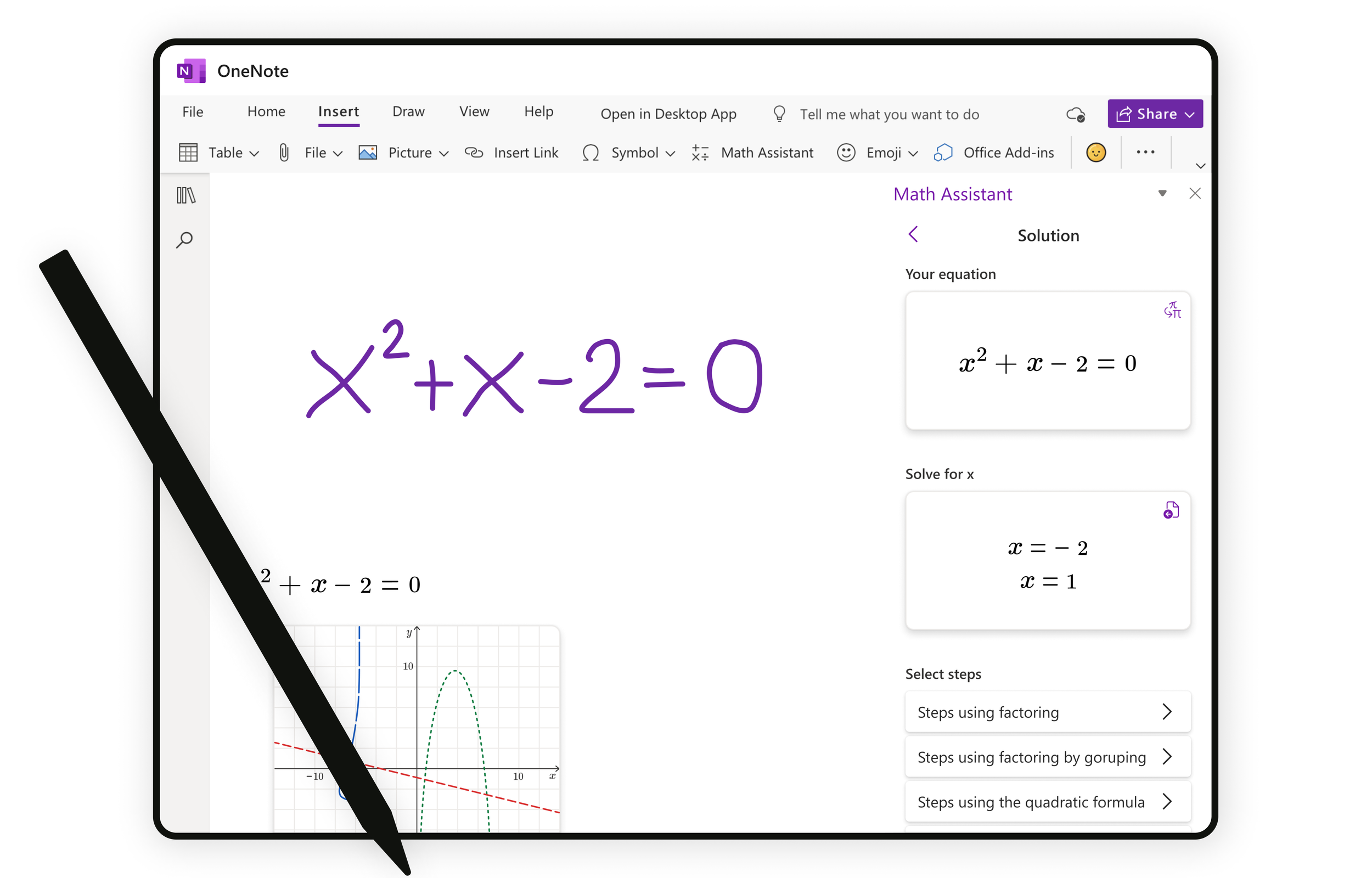
Write or type any math problem and Math Assistant in OneNote can solve it for you—helping you reach the solution quickly, or displaying step-by-step instructions that help you learn how to reach the solution on your own.
I lead the design of this project and was involved from the initial ideation stage through to the final product delivery.
The improved Math Assistant is now getting the old features (Practice, Graphing) with a new look and feel.
Role & Timeline
I’ve been working on Math Assistant from Nov 2021 until May 2023 as the sole designer. I’ve worked on product, UX and UI elements, and also conducted user research and user testing. The whole project consists of a lot of smaller projects.
The previous designer in the team started working on the redesign. My role was to continue the work - redesign the whole Math Assistant, add new features and test all parts of it.
Math team in Serbia developed the product and EDU design team from Redmond was there for design help and crits.
Problem
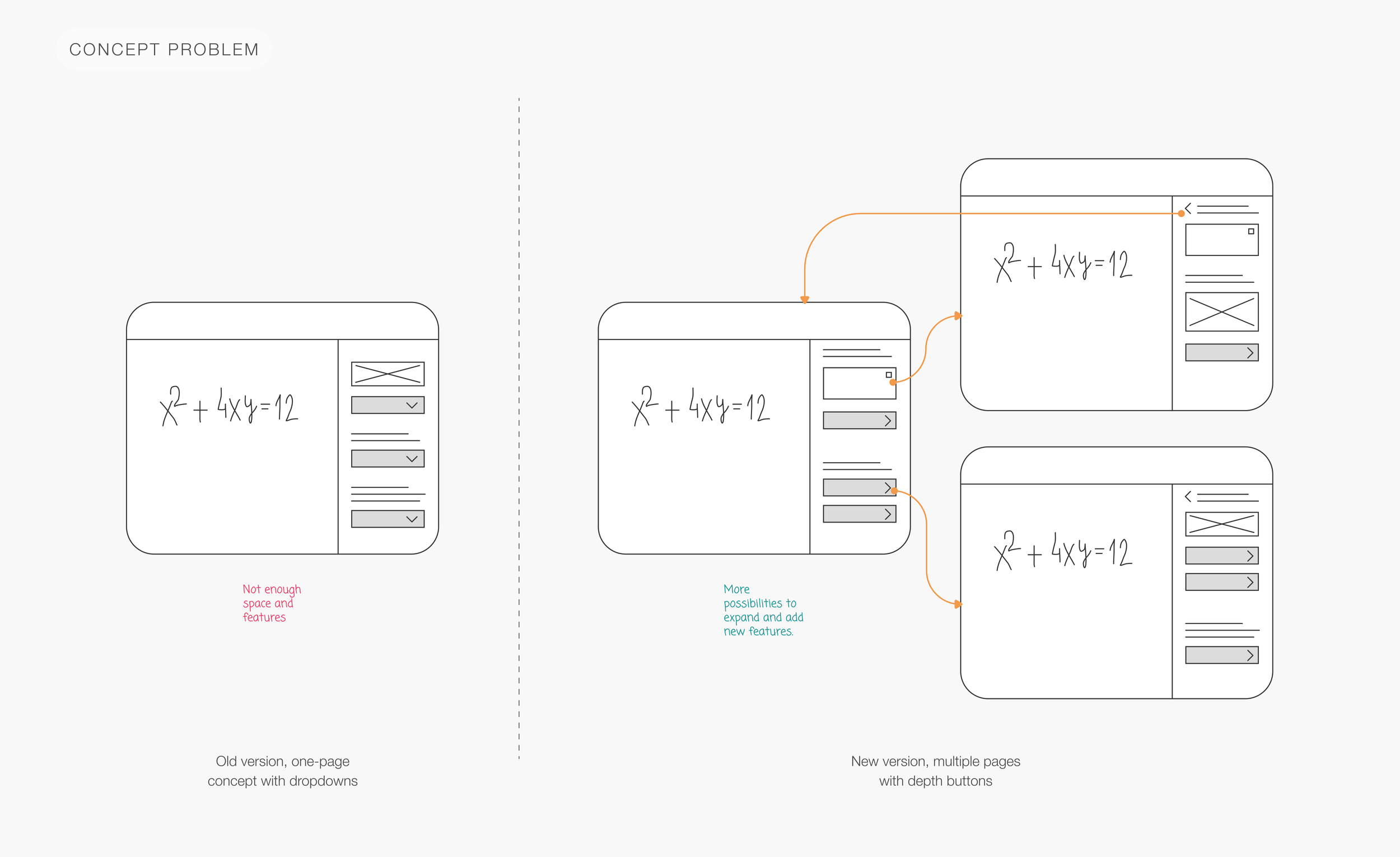
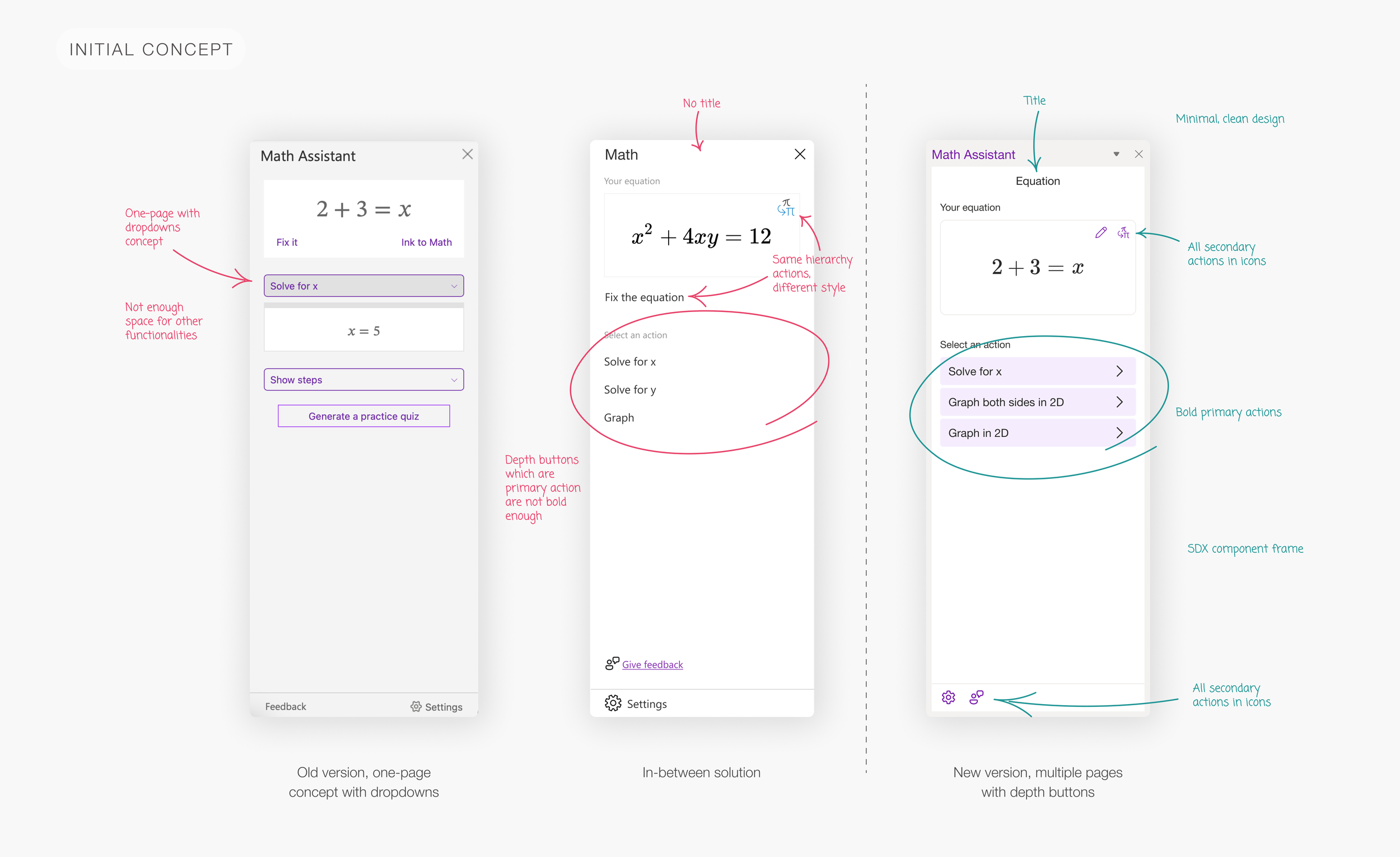
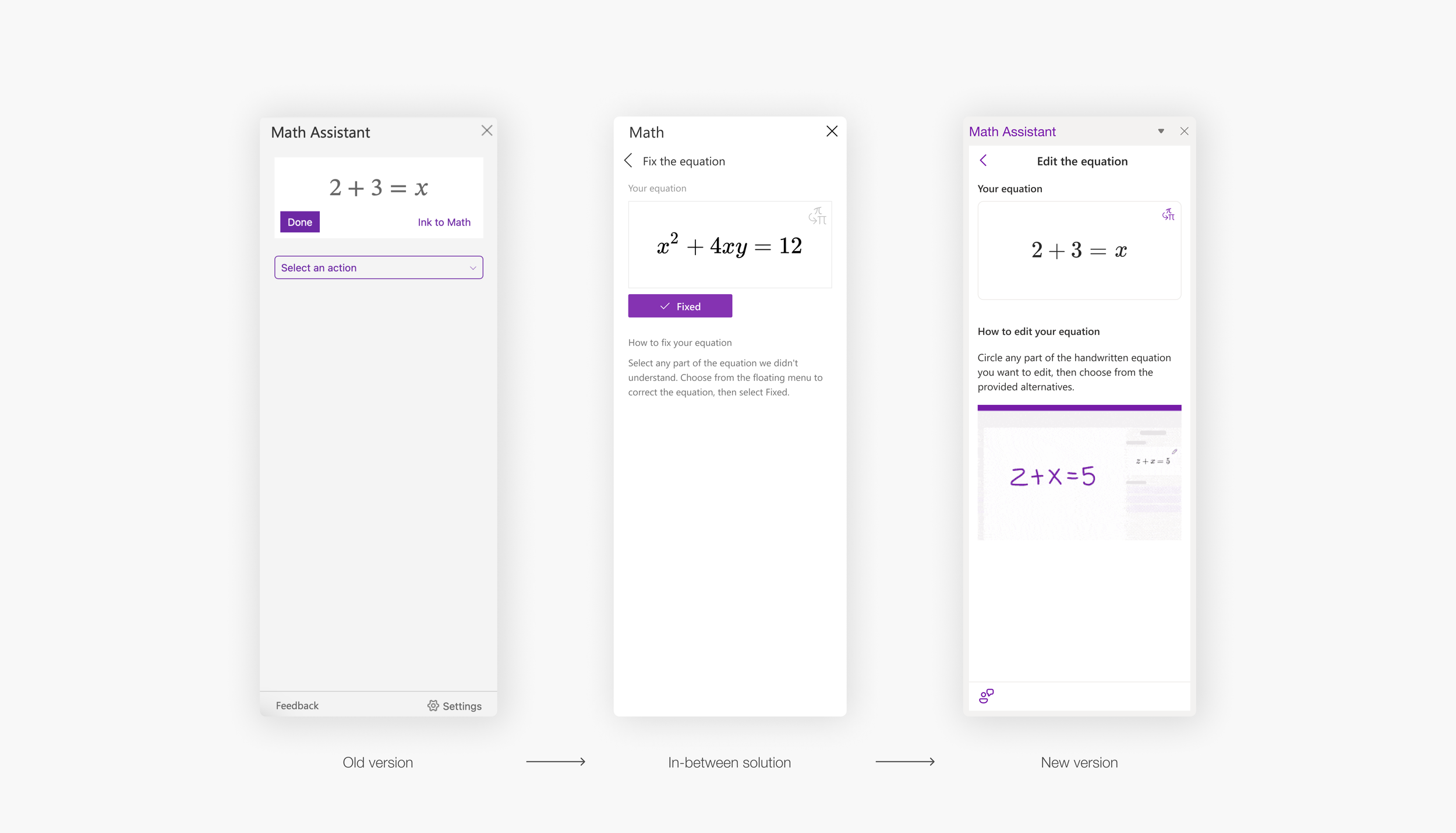
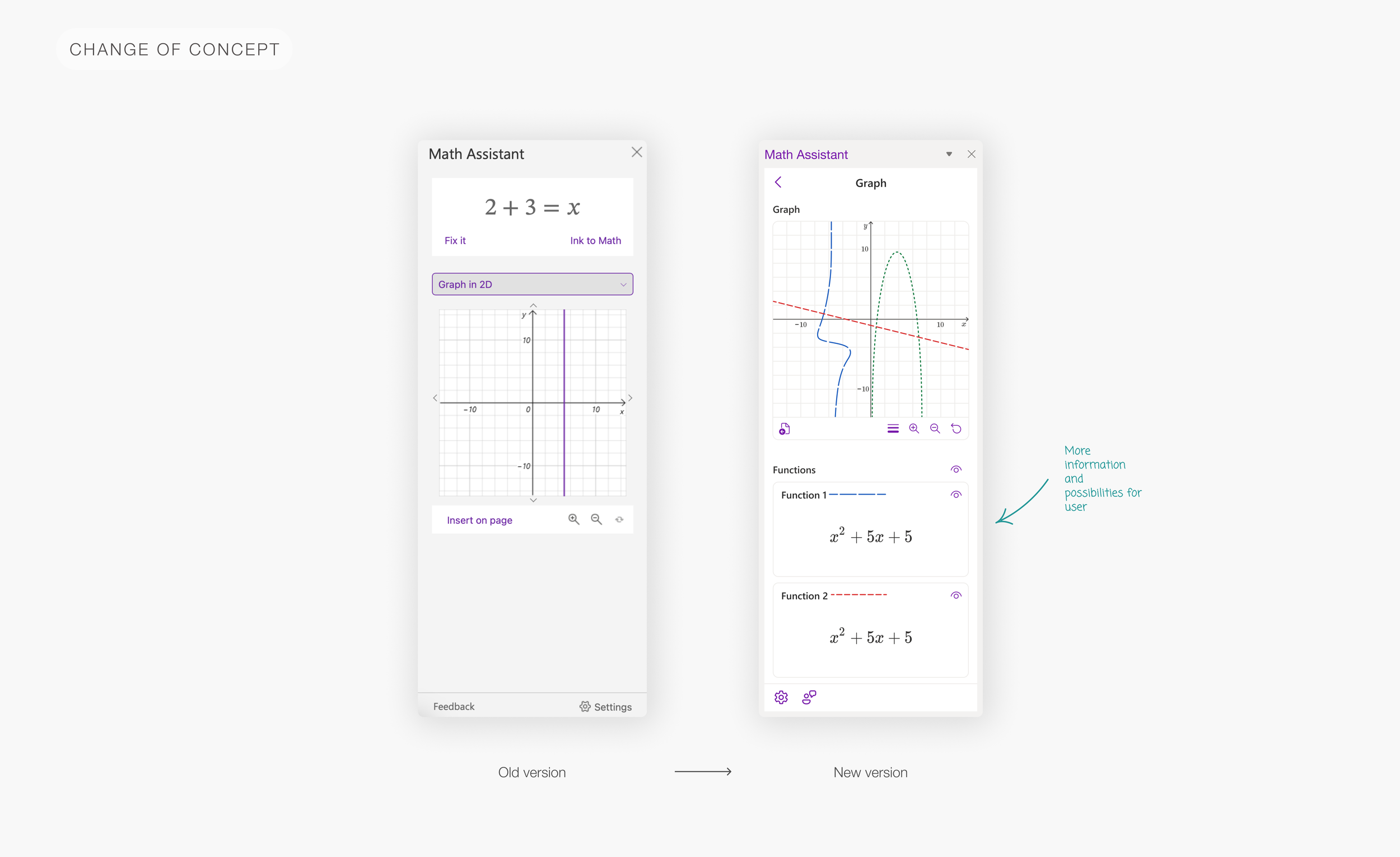
Math Assistant is positioned in OneNote in the side pane that interacts with the main page. Old version needed to be redesigned because of the new architecture and features in it. We needed to change the whole structure - going from single-page concept to the multi-pages, into the depth concept.
For the past two years, the Microsoft EDU Math team in Serbia has been recreating Math Assistant in OneNote as a shared SDX component for easier integrations into new platforms, as well as a cohesive experience across endpoints.
User testing
In the year and a half, I had over 50 middle and high school students and teachers go over the Math Assistant flows and see their reactions. My main goal in this step was to find what were the flows of the whole feature. Later decide what new features we should add and make the whole UX logic clear and easy to use.
The following questions were from the basic one: ‘Have you ever used Math Assistant before?’ to the ‘How would you change the equation when our system doesn’t recognize it correctly?’
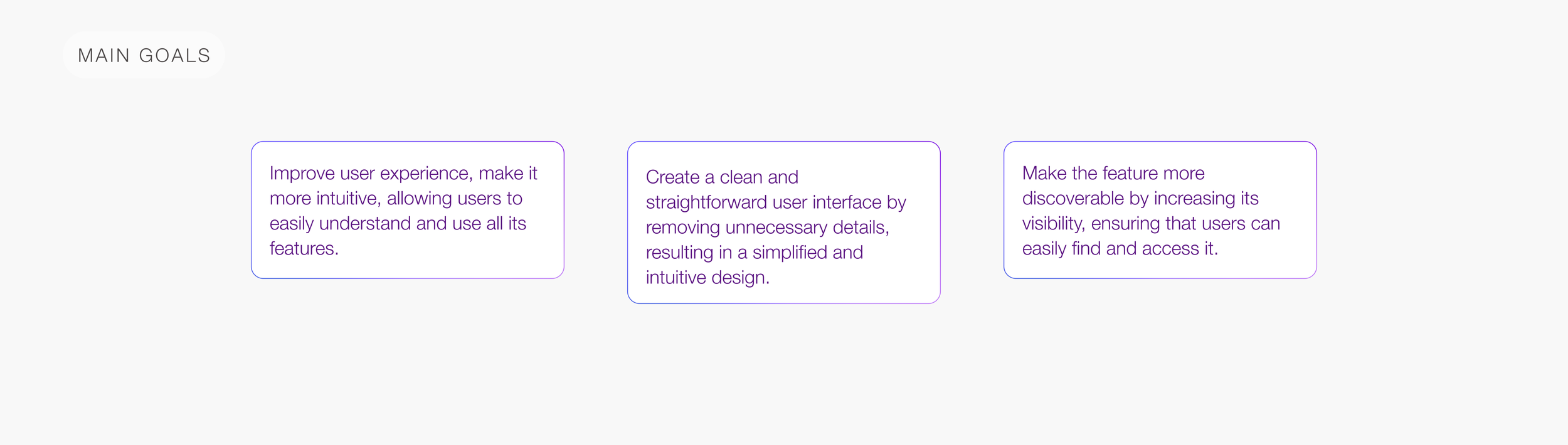
Here’re the main goals I wanted to achieve:
Architecture and navigation
The first thing I started working on was the architecture of the feature and navigation. I wanted to make the pain more visual and easier to use, shorten the text, and use more descriptive using visual elements.
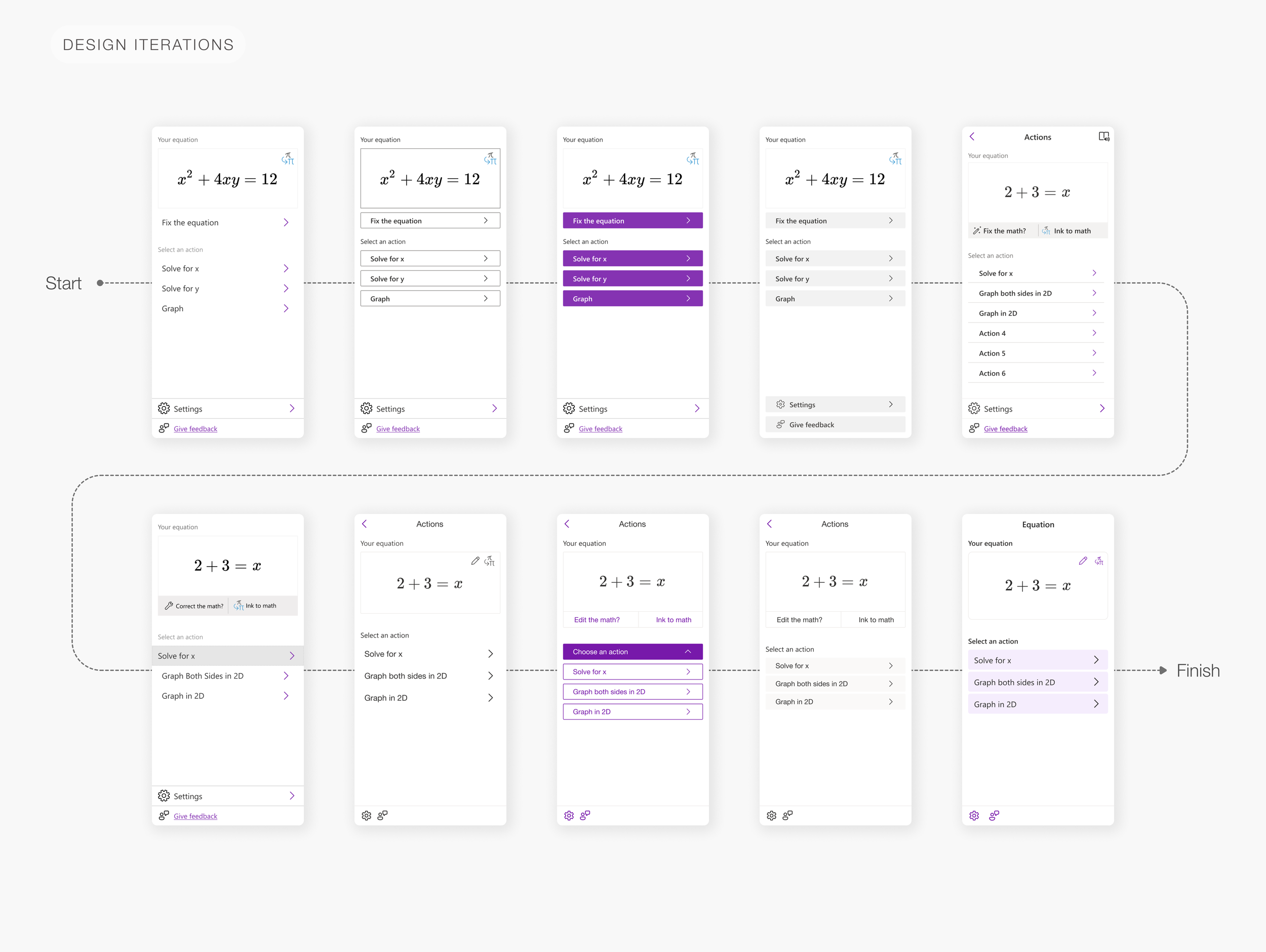
UI components
In the following time, I’ve been working on new features and finding the right UI style. Had a lot of iterations with the design team. Here’s an example of the Equation page and how it changed it’s UI and UX logic.
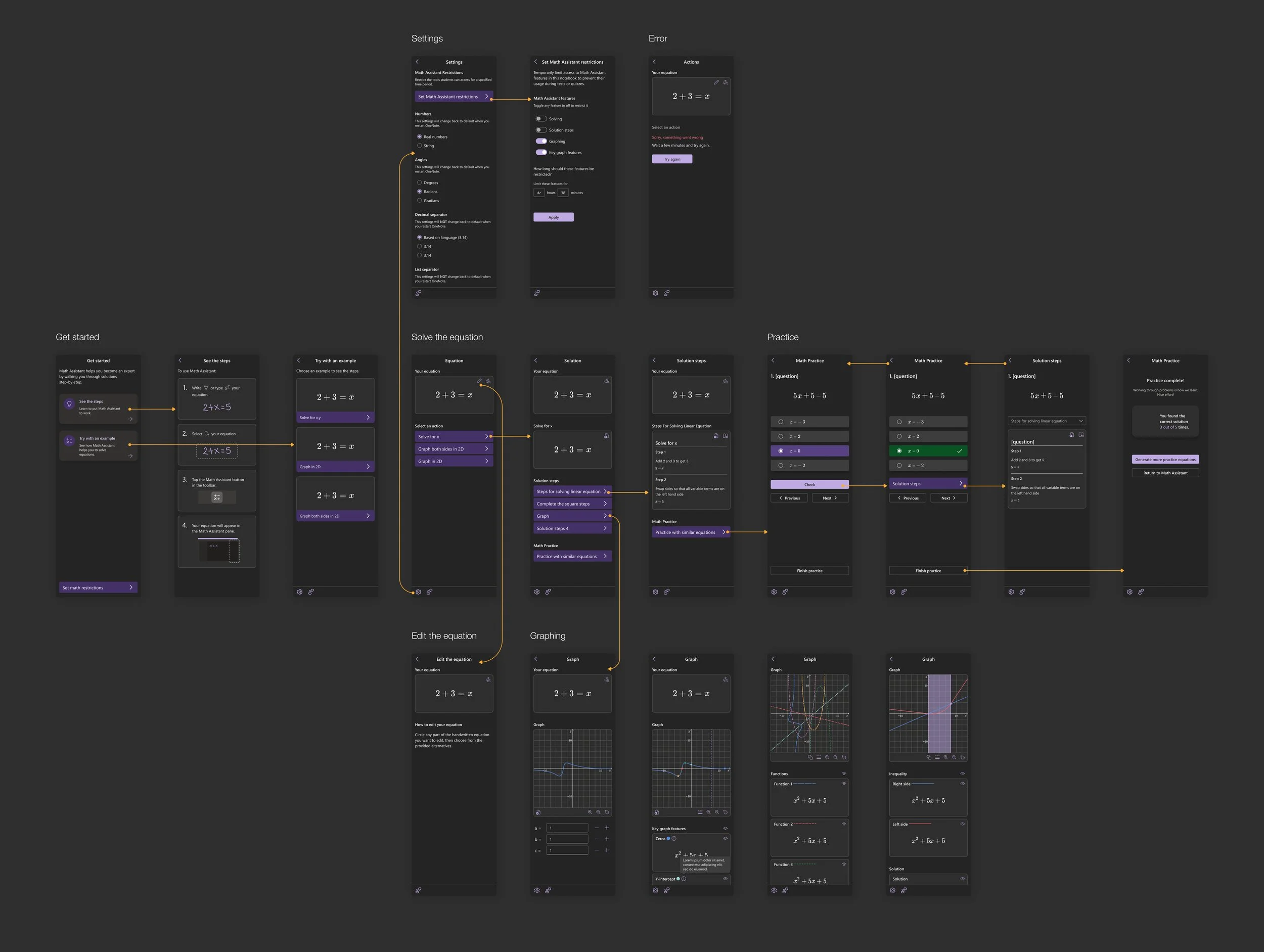
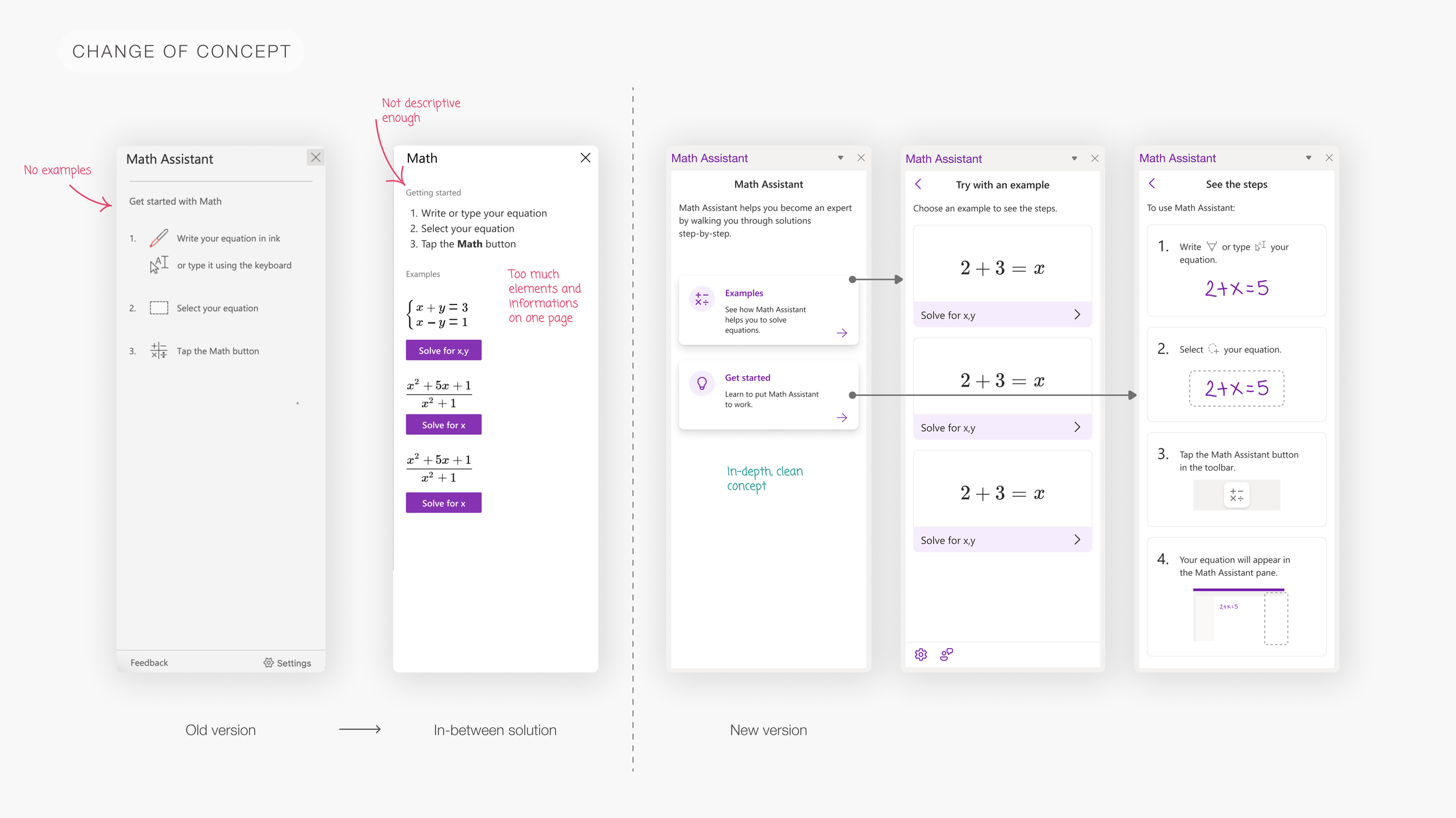
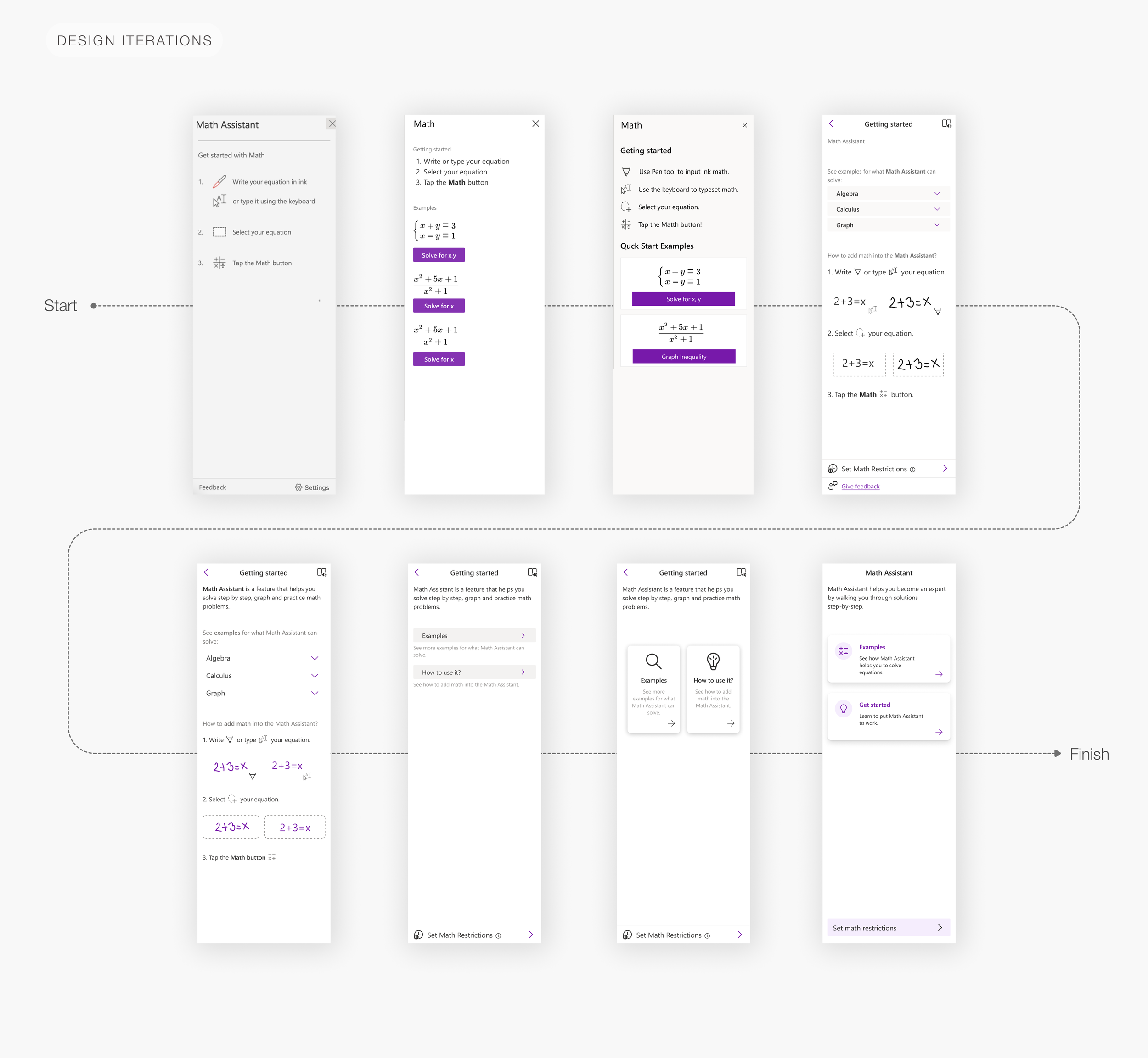
Get started screen
Get started screen needed improvement, mainly to introduce all the features we have in Math Assistant and provide user-friendly guidance on how to interact with them.
Edit the equation
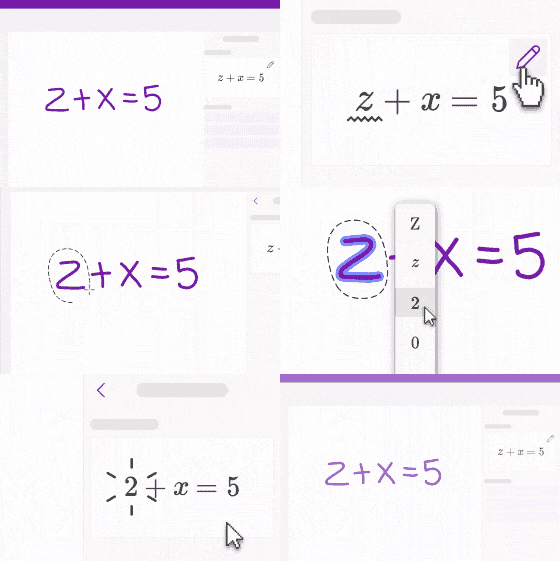
On edit the equation feature the main problems were the discoverability and teaching users how to use the feature. I had dedicated testing sessions for this problem. The conclusions were:
Make the entry point an icon in the Equation section;
Make the pain more visual and easier to use;
Make the text shorter and more descriptive using visual elements;
Add more information on how to use the feature - make a GIF.

Settings and Set math restrictions
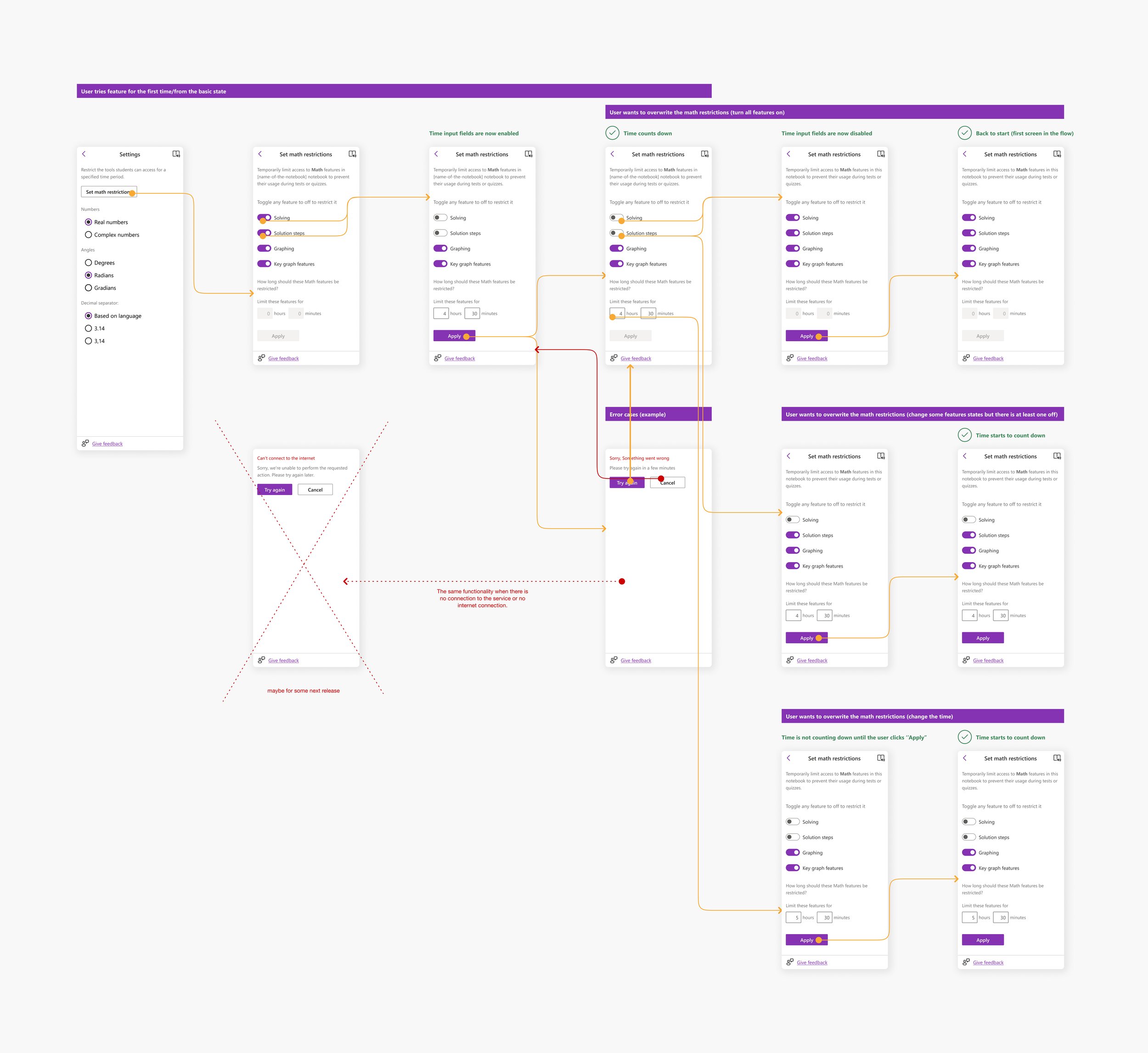
I wanted to expand the range of settings to offer users additional customization and provide a broader array of options.
Math practice
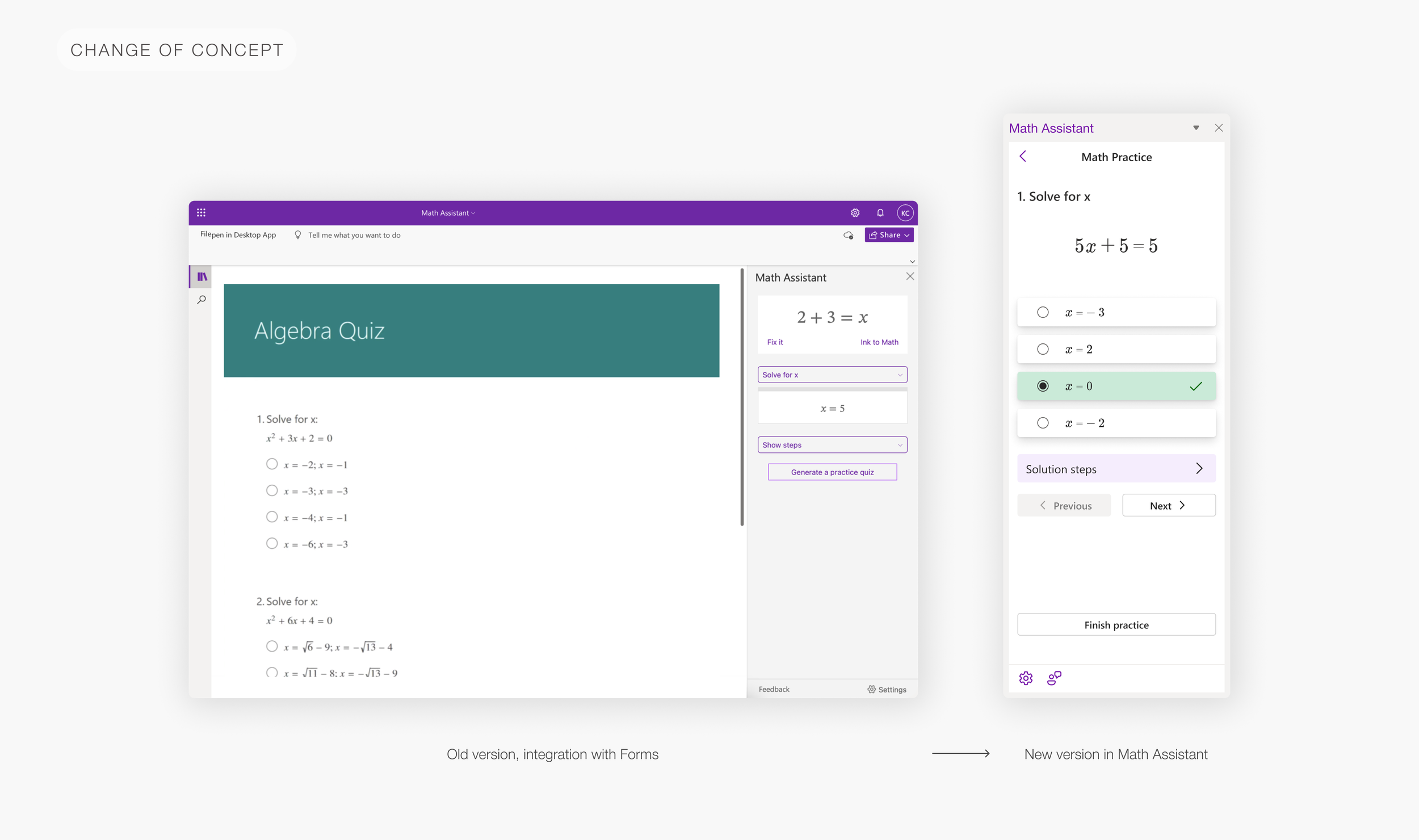
One of the bigger projects inside the Math Assistant was Math Practice.
Math Practice helps you practice math by generating problems based on an equation you're solving and is now embedded in the Math Assistant feature in OneNote. The previous version was working with Microsoft Forms to create a practice quiz and embed it on your OneNote page. Instead of quizzing, now you can practice on an unlimited number of questions with Math Coach help.
More about this feature find on Math practice page.
Graphing
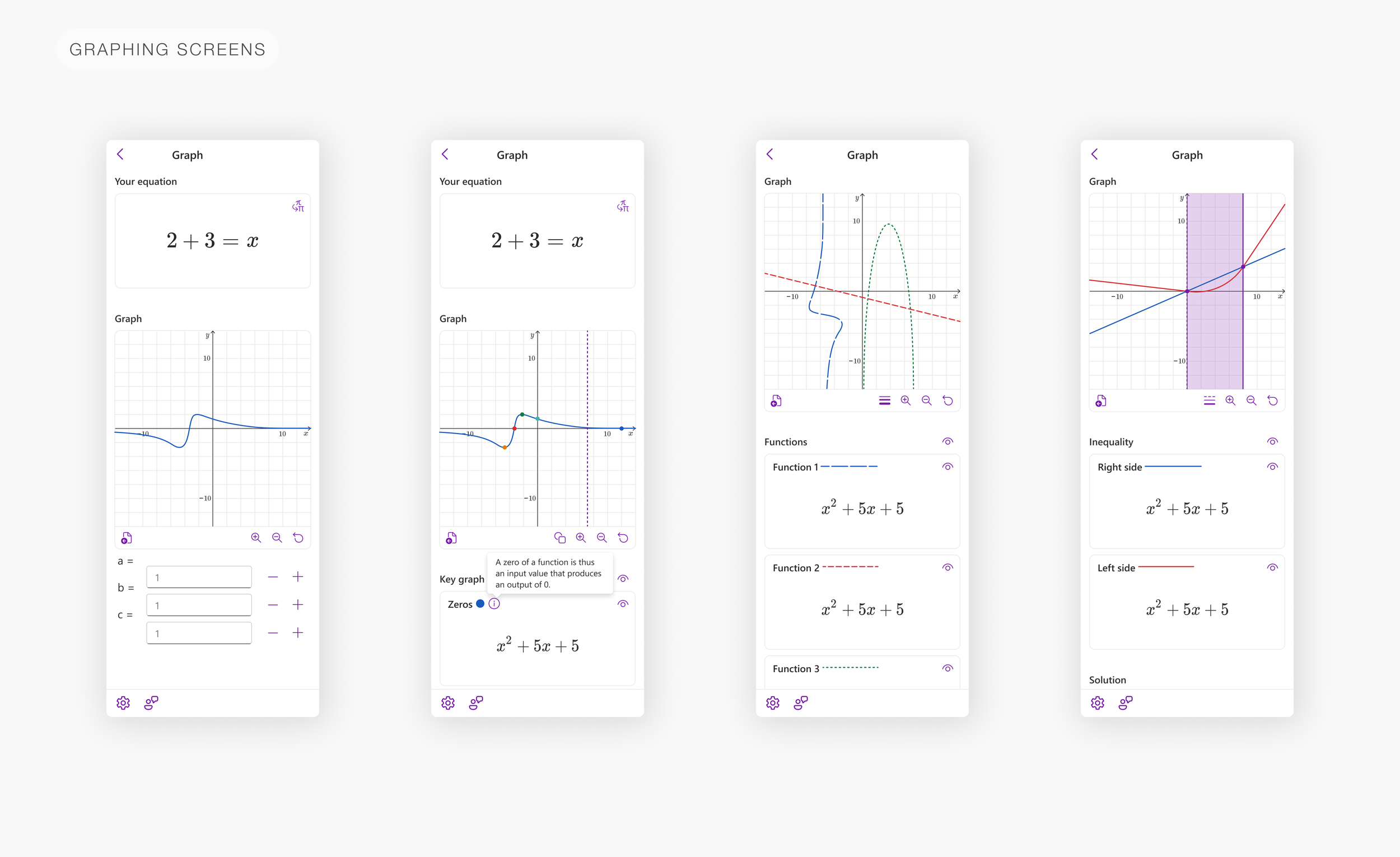
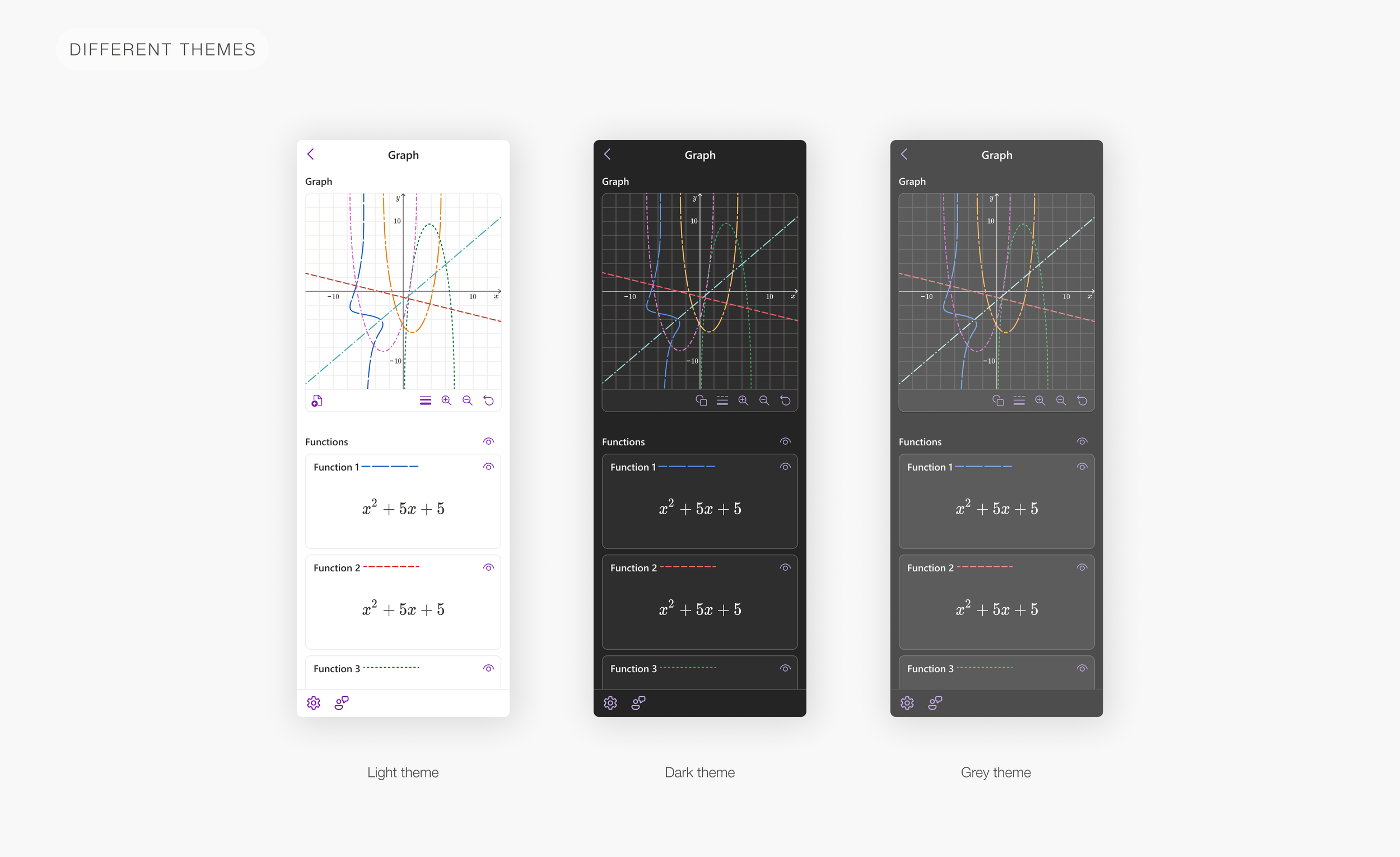
With increased technical freedom, I chose to redesign the graphing feature, introducing more options to provide users with greater control and versatility.
Accessability
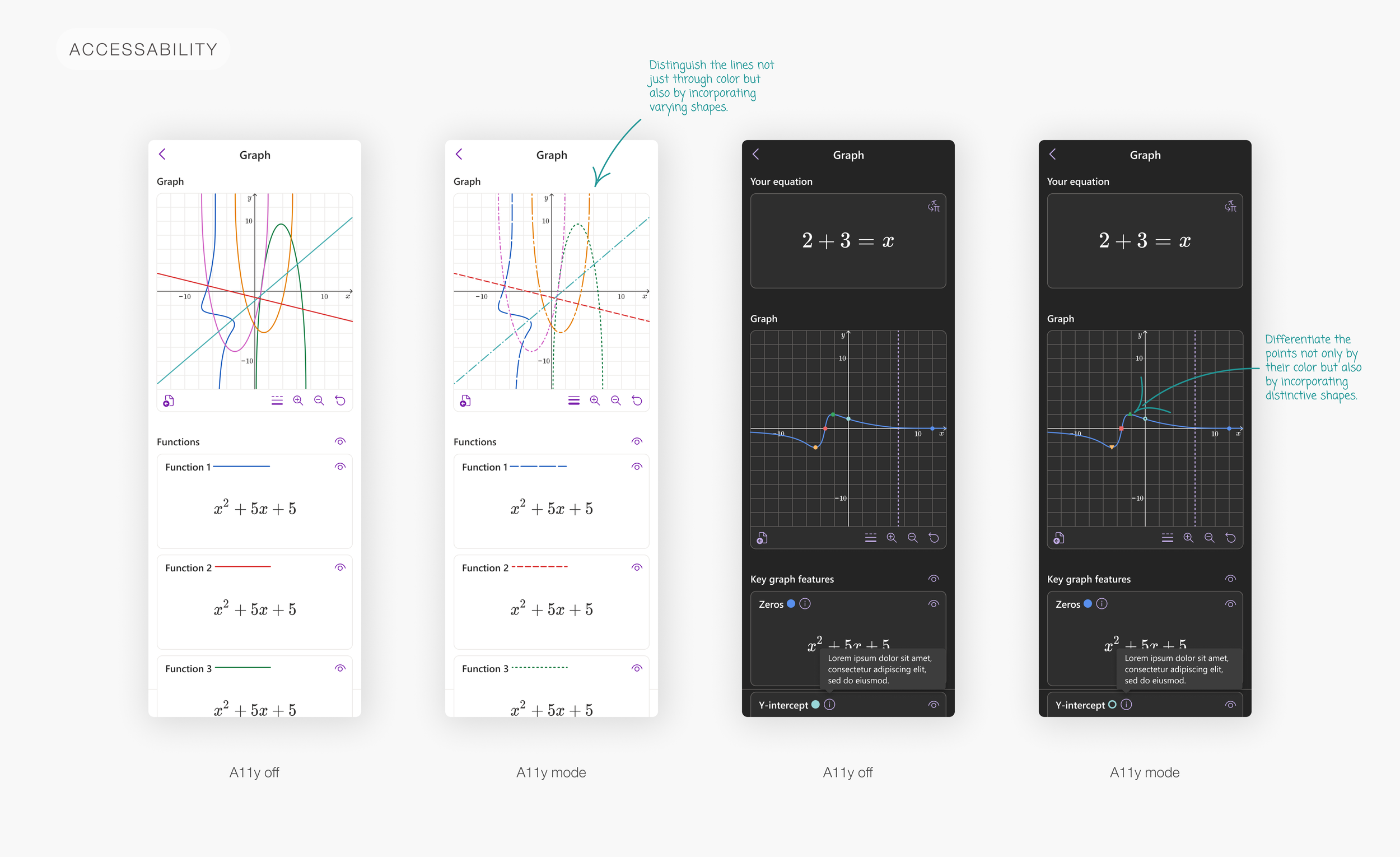
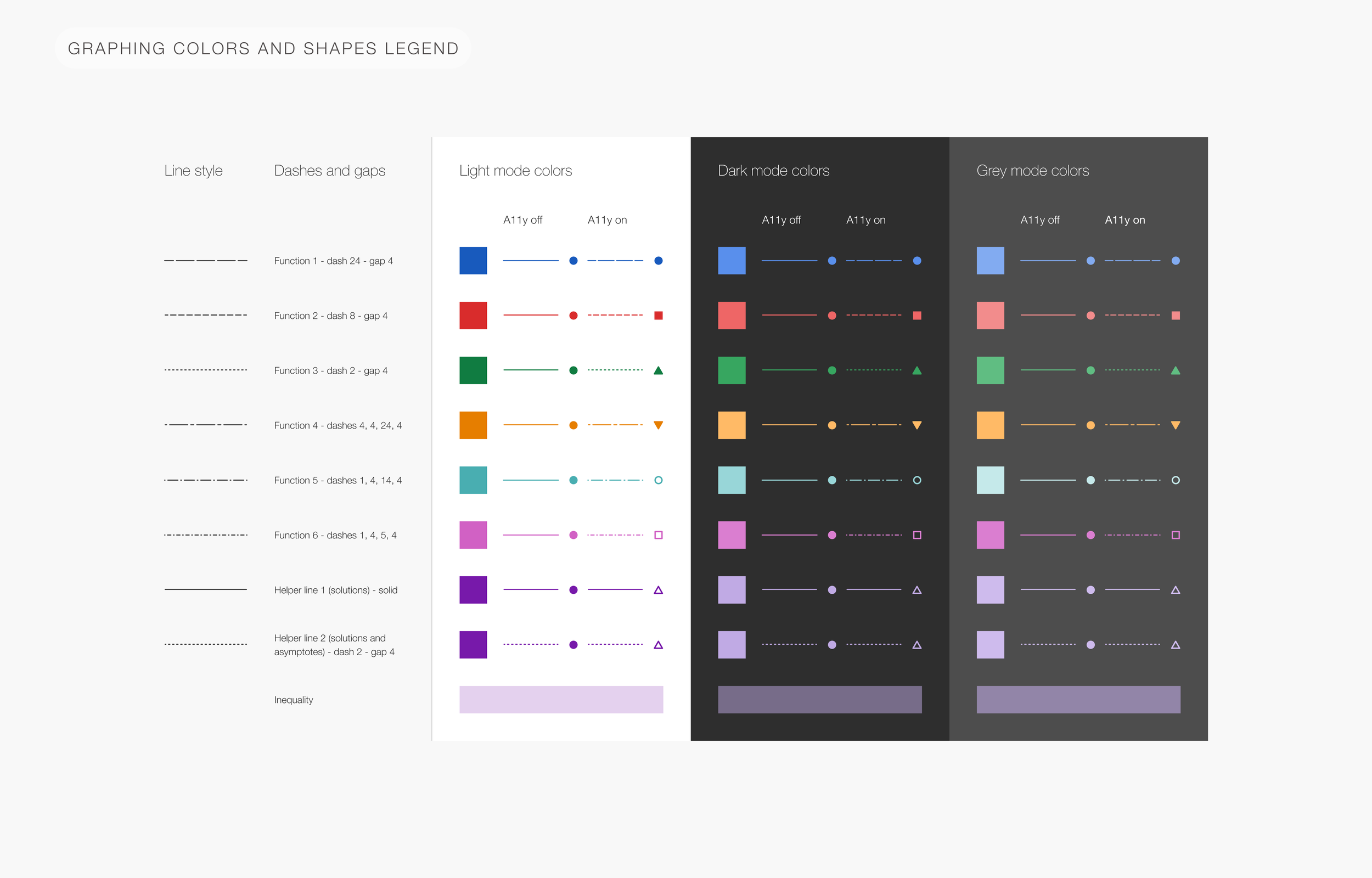
Making the feature more accessible was a key objective, and the graphing feature is a great example. In addition to using color, I incorporated different line types and shapes to clearly distinguish lines and points. Furthermore, I developed UI components that are adaptable to various themes, ensuring a cohesive design across different visual styles.
Results
Here are the outcomes: showcasing one of the key user flows in the dark theme.
The new Math Assistant is now in OneNote Desktop and iPad versions and will be coming to OneNote Online soon.